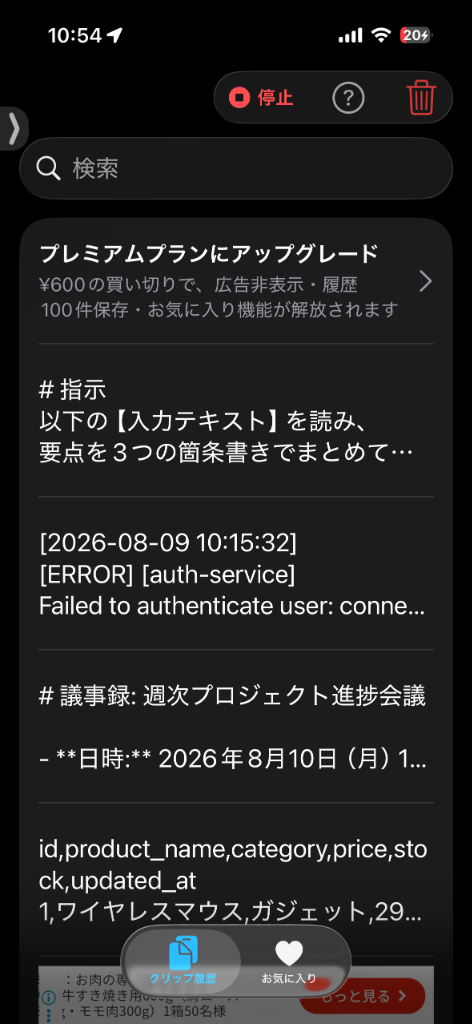
クリップボード履歴をシンプルに管理
コピーしたテキストを自動的に履歴に保存。最大30件まで保持します。
履歴のテキストをタップするだけで再度コピーできます。
PiP機能を活用して、アプリを閉じても自動保存を継続。
クリップボード履歴はローカルのみに保存。履歴テキストデータが外部送信されることはありません。
はい。履歴はデバイスに保存されるため、アプリを閉じても消えません。アプリを削除すると履歴も削除されます。
はい。アプリ内の設定画面よりプレミアムプラン(広告非表示アドオン)をご購入いただくことで、広告を完全に非表示にすることができます。
クリップボードに保存されたテキストデータが外部に送信されることは一切ありません。ただし、アプリ内課金処理(StoreKit)、品質向上(クラッシュレポートや匿名の利用統計データ)、および広告表示の最適化のために、個人を特定しない匿名の統計データが一部外部サービス(Apple, Google AdMob, Firebase)に送信されることがあります。
コントロールセンターに追加した「クリップボード自動保存」ボタンをタップすると、小さなPiPウィンドウが立ち上がり、アプリがバックグラウンドにいてもテキストのコピー履歴を自動保存し続けます。
設定アプリの「clipboood」>「他のAppからペースト」を「許可」にすると通知ダイアログが出なくなり、より快適に自動保存が利用できます。クリップボード履歴データが外部に送信されることはありません。
ご質問・ご要望・不具合報告などがございましたら、以下のメールアドレスまでお気軽にご連絡ください。
Simple clipboard history manager
Automatically saves copied text to history. Keeps up to 30 items.
Simply tap any item in your history to copy it again.
Uses PiP (Picture in Picture) to continue saving even when the app is closed.
Clipboard history is stored locally. The clipboard text data is never sent to external servers.
Yes. Your history is saved on your device and will not be lost when you close the app. However, uninstalling the app will also delete all history.
Yes, you can purchase the Premium Plan (Ad-Free Add-on) from the app's settings menu to completely remove all advertisements.
Clipboard text data is never sent to external servers. However, anonymous statistics for app analytics, crash reporting, and ad optimization may be shared with external services (Apple, Google AdMob, Firebase).
Tap the "Auto Save Clipboard" button in Control Center. A small PiP window will appear, and the app will continue saving your clipboard history even in the background.
Go to Settings > clipboood > "Paste from Other Apps" and select "Allow". This will prevent the paste confirmation dialog. Clipboard text data is never sent to external servers.
If you have any questions, feature requests, or bug reports, please feel free to contact us at: